
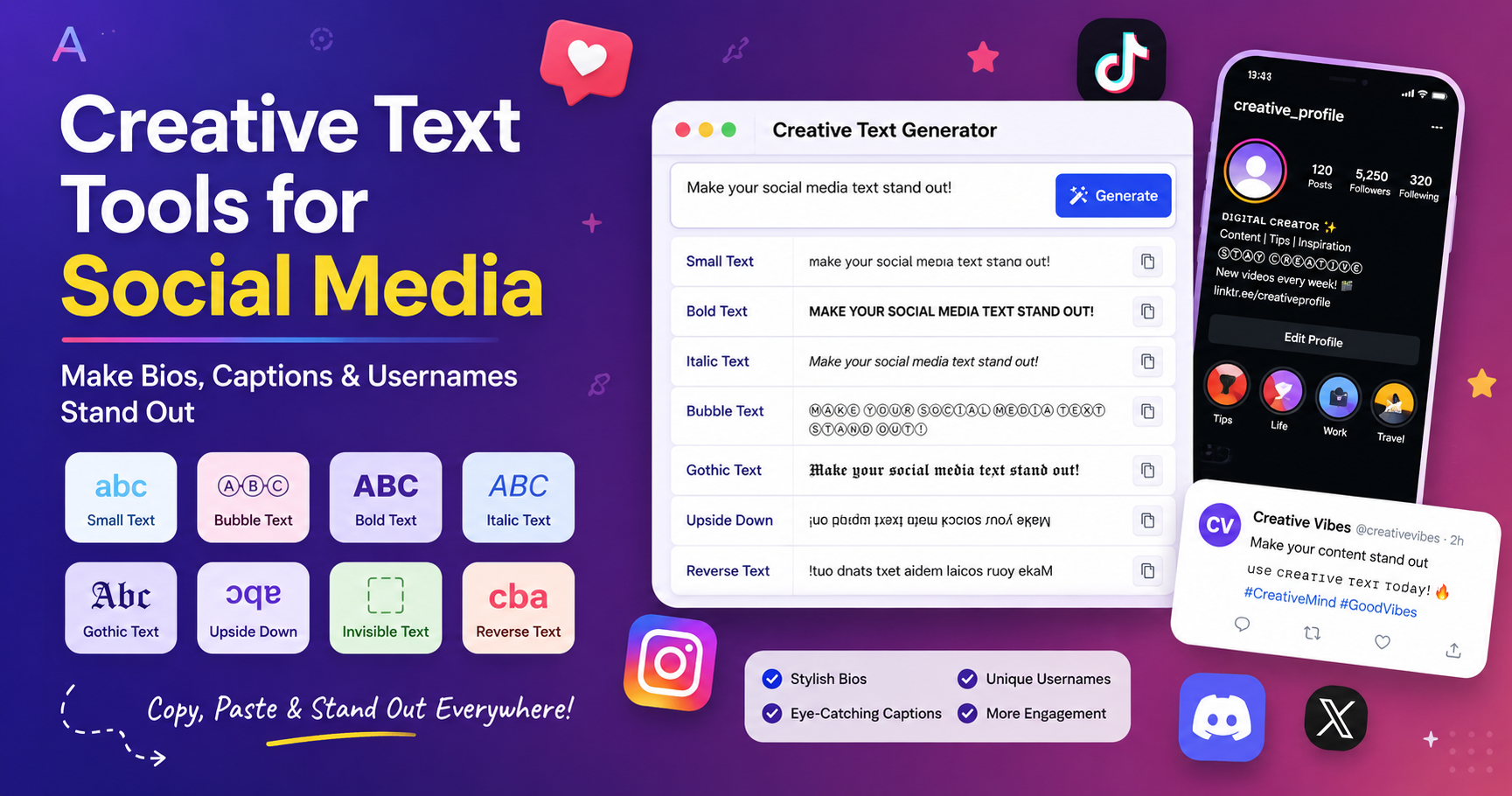
Social media is crowded. A plain bio, caption, or username can still work, but sometimes a small formatting detail helps your profile feel more polished, playful, or memorable. Creative text tools make that easier by turning normal text into small caps, tiny letters, upside down text, bubble letters, invisible spacing, clean title case, and other copy-paste styles.
The key is balance. Stylish text can help a phrase stand out, but too much decorative formatting can make your content harder to read. This guide explains how to use creative text tools for social media bios, captions, usernames, comments, and posts without making your profile look messy.
What Are Creative Text Tools for Social Media?
Creative text tools are simple browser-based utilities that change the appearance, spacing, or structure of text. Instead of designing an image or installing a font, you type normal text, choose a style, copy the result, and paste it into a social platform.
Most stylish text tools use Unicode characters. That means the output is usually made of special characters that look like different fonts, symbols, or letter styles. They are not the same as installing a real font file on your device.
Examples:
- Normal text: hello world
- Small caps: ʜᴇʟʟᴏ ᴡᴏʀʟᴅ
- Bubble text: ⓗⓔⓛⓛⓞ ⓦⓞⓡⓛⓓ
- Gothic style: 𝔥𝔢𝔩𝔩𝔬 𝔴𝔬𝔯𝔩𝔡
- Upside down text: plɹoʍ ollǝɥ
Because these are special characters, they may display differently across platforms, devices, browsers, or older apps. Test the final text before using it in important profile areas.
Why Creative Text Helps on Social Media
Creative text can add personality and visual rhythm to short social media areas where every character matters.
- Profile branding
- Bio highlights
- Short captions
- Username styling
- Story highlights
- Comment emphasis
- Product or service labels
- Gaming names
- Discord nicknames
- TikTok and Instagram bios
- Aesthetic post formatting
Before styling a long caption, use the Word Counter to keep the message clear and the Creative Text Tools for Social Media to choose the right capitalization style.
Best Creative Text Tools to Use
Small Text Generator
A Small Text Generator turns normal text into tiny Unicode styles, small caps, superscript, subscript, bubble text, and gothic-style text. It is useful for bios, subtle captions, profile notes, usernames, and aesthetic text layouts.
- Instagram bios
- TikTok bios
- Discord names
- Short aesthetic captions
- Profile separators
- Minimal branding
Upside Down Text Generator
An Upside Down Text Generator flips regular text into upside down characters. It works best for jokes, casual captions, gaming profiles, or attention-grabbing comments.
- Fun captions
- Meme-style posts
- Gaming usernames
- Casual replies
- Creative profile lines
Invisible Character Generator
An Invisible Character Generator creates blank-looking Unicode characters that can be copied and pasted where normal spaces may not work. People often use invisible characters for spacing, profile formatting, blank names, or creative line breaks.
Warning: use invisible characters carefully. Some platforms may remove them, and too many invisible characters can confuse readers or make editing harder.
Case Converter
A Case Converter helps clean up capitalization before you publish. It can turn messy text into uppercase, lowercase, sentence case, title case, capitalized case, alternating case, or inverse case.
Reverse Text Generator
A Reverse Text Generator flips the order of letters, words, or text. It is useful for puzzles, hidden messages, playful captions, and creative comments.
Social Media Text Style Comparison Table
Creative Text Style Comparison
| Tool/style | Example | Best use | Use carefully when |
|---|---|---|---|
| Small caps | ʜᴇʟʟᴏ ᴡᴏʀʟᴅ | Bios, profile notes, subtle captions | Long paragraphs |
| Superscript | ʰᵉˡˡᵒ | Tiny accents, aesthetic bios | Important information |
| Bubble text | ⓗⓔⓛⓛⓞ | Playful usernames, highlights | Professional posts |
| Gothic style | 𝔥𝔢𝔩𝔩𝔬 | Themed profiles, gaming names | Readability is important |
| Upside down text | plɹoʍ ollǝɥ | Jokes, memes, casual captions | Serious announcements |
| Invisible character | blank-looking space | Spacing and blank names | Accessibility and editing |
| Title case | Creative Text Tools | Headlines and labels | Casual captions |
| Reverse text | dlrow olleh | Puzzles and hidden messages | Normal reading |
How to Use Creative Text Without Hurting Readability
- Keep stylish text short.
- Use decorative text for emphasis, not the whole caption.
- Avoid using multiple decorative styles in one sentence.
- Do not use all caps for long captions.
- Keep important information in normal readable text.
- Preview your profile on mobile.
- Use camel case for hashtags, such as #SmallBusinessTips, so words are easier to scan.
- Do not hide important details using invisible characters.
- Avoid excessive emojis, symbols, and punctuation.
Accessibility Tip
Creative Unicode text can look stylish, but it may not always be read clearly by assistive technologies. Use it for short decorative phrases, and keep important information in normal text.
Where to Use Creative Text on Social Platforms
Instagram bios
Use small caps, tiny text, or one decorative word to highlight your niche, role, or tagline. Avoid making the entire bio decorative because it can reduce readability.
Example: ᴅɪɢɪᴛᴀʟ ᴍᴀʀᴋᴇᴛᴇʀ | Content tips | SEO tools
TikTok bios
TikTok bios are short, so creative text should be used carefully. One styled phrase can make a profile feel branded, but the main message should stay clear.
Facebook and LinkedIn posts
Use creative text sparingly. Professional platforms usually work better with clean formatting, strong wording, and readable captions. Use the Case Converter and Word Counter more often than decorative fonts here.
Discord names and gaming profiles
Stylish Unicode text, small caps, bubble text, and gothic styles can work well for gaming names or community profiles, as long as they are still readable and allowed by the platform.
X/Twitter and short posts
Short posts need clarity. Use creative text only for a highlight, punchline, or visual style, not the entire post.
Step-by-Step Workflow for Social Media Text
1. Write the message normally
Start with clear plain text. Do not style messy writing.
2. Clean the capitalization
Use the Case Converter to fix uppercase, lowercase, sentence case, or title case.
3. Check length
Use the Word Counter if the caption, bio, or post needs to stay concise.
4. Add one creative style
Use the Small Text Generator, Upside Down Text Generator, or Invisible Character Generator depending on the effect you want.
5. Preview before posting
Paste the final text into the platform and check how it looks on mobile.
6. Keep a clean backup
Save the normal version of your text in case a platform does not display the Unicode style correctly.
Common Mistakes to Avoid
- Styling the entire bio with hard-to-read characters
- Using too many fonts in one profile
- Adding invisible characters without testing
- Using decorative text for important business information
- Forgetting to check mobile display
- Making hashtags all lowercase when multiple words are joined
- Using upside down text for serious information
- Copying random symbols that do not match your brand
- Forgetting to proofread after conversion
Best Practices for Brands, Creators, and Students
For personal brands
Use one consistent text style for your profile name, tagline, or highlight line. Consistency looks better than changing styles every post.
For businesses
Keep important offers, phone numbers, URLs, and service descriptions in normal readable text. Use creative text only for small accents.
For students and casual users
Creative text is fine for fun profiles, gaming names, and captions, but avoid using it in formal assignments, resumes, or important emails.
For content creators
Use creative text as a visual hook. Pair it with clear captions, readable hashtags, and a consistent posting style.
Related Tools for Creative Social Media Text
Creative text works best when it is part of a clean writing workflow. These tools help you style text, clean formatting, check length, and create playful effects without installing extra apps.
Small Text Generator
Create small caps, tiny Unicode, bubble text, superscript, subscript, and gothic styles.
Upside Down Text Generator
Flip text for playful captions, profile lines, and casual comments.
Case Converter
Clean uppercase, lowercase, title case, and sentence case before posting.
Word Counter
Keep bios, captions, and posts concise and readable.
Invisible Character Generator
Create supported blank characters and spacing effects.
Reverse Text Generator
Make reversed text for hidden messages, puzzles, and playful comments.
Final Thoughts
Creative text tools can make social media bios, captions, usernames, and comments more memorable, but the best results come from balance. Use stylish Unicode text for short highlights, profile accents, and playful effects. Keep important information readable, clean, and easy to understand.
A good workflow is simple: write the message, clean the case, check the length, add one creative style, and preview it on mobile. That approach helps your content stand out without looking messy or difficult to read.
For more practical formatting guidance, read the Text Case Formatting Guide and How to Use a Word Counter Effectively.